 how-to
How to Check a Used Desktop Before Buying Online
Quick Summary
To check a used desktop before buying online, verify the listing's model and serial number against factory specs, and request a continuous video showing the machine powering on, the system specs, and a storage health readout. Also confirm the seller tested the unit and disclosed anything missing.
- Note the model and serial number and compare them against the manufacturer's factory configuration.
- Request one unbroken video starting from power-on, with the serial label visible at the start.
- Storage reporting Caution status or any reallocated sectors means plan to replace the drive.
- Run a CPU stress test for 10 to 15 minutes and watch whether temperatures level off.
Table of Contents
- Why Checking a Used Desktop Before You Buy Matters
- What to Ask for When Buying a Used PC Online
- How to Verify Specs and Condition From the Listing
- How to Test a Used PC Before Buying Without Meeting the Seller
- Used Desktop PC Inspection Checklist
- 1. Document the unit before you power it on
- 2. Confirm it boots reliably, more than once
- 3. Verify the advertised specs inside the operating system
- 4. Test memory
- 5. Check storage health and capacity
- 6. Stress the CPU and GPU and watch temperatures
- 7. Watch for crashes, blue screens, and artifacts
- 8. Check ports, peripherals, and connectivity
- 9. Review the operating system and license
- 10. Decide: pass, investigate, or walk away
- How to Test a Used Gaming PC Before Buying
- Paying Safely and Setting Up Your Desktop After Delivery
- Frequently Asked Questions
Why Checking a Used Desktop Before You Buy Matters
Last Updated: November 10, 2026
Buying a used desktop online can save real money, but you can't touch the machine before you pay.
Used desktops are a common purchase for students, small business owners, and hobbyists, and a refurbished or surplus unit often delivers far more power for the money than a new budget machine.
Used desktop listings typically cover the CPU, memory, and storage, and may not reveal problems such as a failing power supply, bad drive sectors, or overheating under load.
Use these checks to protect yourself:
- Read the full description, including what is not included
- Confirm the advertised specs match what the seller shows
- Ask for proof that the machine boots and runs
Some items sold on KVS Auctions are incomplete and intended for technically skilled buyers. Learn how to spot fake or misleading auction listings in How to Spot Fake Auction Listings: A Bidder's Checklist before you commit.
What to Ask for When Buying a Used PC Online
Before you bid, ask the seller for evidence.
The most useful things to request are:
- Clear photos of the actual unit, not stock images
- Photos of the rear ports and the model label
- A description of the exact configuration (CPU, RAM, storage)
For a used PC, the model and serial numbers matter: they let you look up factory specs and confirm the listing isn't exaggerating.
Also ask what the seller tested.
The article's key pre-bid requests are summarised below so you can check a listing quickly.
| Request | What it confirms | Why it matters |
|---|---|---|
| Clear photos of the actual unit | Real condition, not stock images | Stock photos hide defects |
| Photos of rear ports and model label | Model and serial number | Lets you look up factory specs |
| Exact configuration (CPU, RAM, storage) | What the machine contains | Confirms the listing is accurate |
| Proof it boots and runs | Machine works as described | Prevents buying a dead unit |
| Specific test details | What was actually tested | 'Tested and working' alone is vague |
How to Verify Specs and Condition From the Listing
Start by comparing the listing against the manufacturer's published specifications for that model.
Follow these steps:
- Note the model and serial number. Search the manufacturer's support site for the factory configuration.
- Check the CPU, RAM, and storage. Make sure the listed parts match what the model could have shipped with.
- Read the "not included" list. Missing drives, cables, or an operating system change the cost of getting the machine running.
- Look for condition notes. Scratches, cracks, or missing feet should be described in the listing.
If the listing includes a hard drive, find out its size and type.
Careful checking here prevents surprises later. A listing with missing information isn't always a scam, but it is a reason to ask more questions before you bid.
How to Test a Used PC Before Buying Without Meeting the Seller
When you can't inspect the machine in person, evidence is your only defense. The goal isn't a single photo or a five-second clip, it's a dated, continuous record tying the specific unit to the specific test. Vague proof makes disputes harder to resolve, so build a request list that closes that gap.
Request a live, continuous video, not edited clips
Ask the seller to record one unbroken video, with the computer's serial-number label visible at the start, that shows:
- The machine powering on from a fully off state and reaching the operating system or BIOS screen
- A system information screen (Windows Settings > System > About, or the BIOS main page) showing the CPU model, installed RAM amount, and Windows edition
- The storage device listed in Disk Management or Device Manager, including model name and capacity
A continuous video is much harder to fake than a set of stills. If the seller sends multiple short clips, ask for one take covering power-on through the temperature reading without cuts.
Watch out: A video that starts already at the desktop, or that never shows the serial label, proves almost nothing, the seller could be filming a different machine.
Ask for dated screenshots and system reports
Video is strong, but screenshots are easier to compare side by side. Request:
- A screenshot of System Information showing the processor, installed memory, and system model
- A screenshot of the storage health tool showing the drive model, power-on hours, and health status
- A screenshot of the Windows activation status page (Settings > System > Activation)
Check that timestamps and file names are consistent. Sellers reusing photos from an old listing is a common pattern; mismatched backgrounds, different lighting, or a changing desktop wallpaper are clues.
Interpret the evidence with thresholds, not vibes
Numbers only help if you know what good looks like. Use these rules of thumb:
- Storage health: "Good" status with low power-on hours is a green light. "Caution" status, reallocated sectors above zero, or pending sectors is a walk-away signal, plan to replace the drive before trusting it with data.
- CPU temperatures: Under sustained load, most desktop CPUs should stay well below their rated maximum (often around 90-100°C for modern chips). If the readout climbs toward that ceiling within minutes, the cooler or thermal paste is likely failing.
- Memory: Ask for a screenshot of a memory diagnostic (Windows Memory Diagnostic or MemTest86) showing a clean pass. A single error is a fail.
Know what incomplete evidence means
If the seller cannot or will not provide a continuous video, treat that as a pricing signal, not necessarily a scam. Many surplus sellers list units as untested or incomplete; budget for a replacement drive, a fresh OS license, and a cooling cleanup, and bid accordingly. The decision framework later in this article shows how to turn these results into a pass, investigate, or walk-away call.
Used Desktop PC Inspection Checklist
Run these checks in the order below during the first day or two after delivery, while the return window is still open. Each item includes what to look for and how to judge the result.
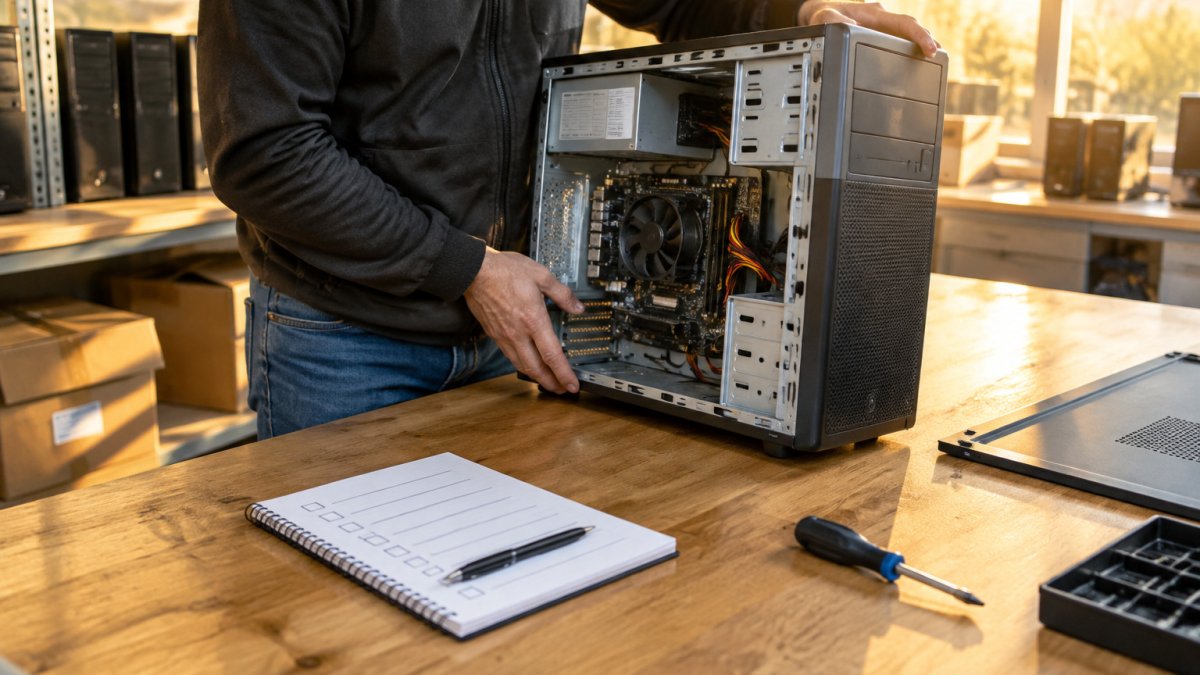
1. Document the unit before you power it on
- Photograph the shipping box, the case, and the serial-number label
- Compare the serial number to the listing and to the seller's video
- Note any cracks, dents, missing feet, or bent port pins
If the serial number doesn't match, stop and contact the seller before proceeding, a mismatch is one of the clearest signs the delivered unit isn't the one you bought.
2. Confirm it boots reliably, more than once
- Power on from a fully off state and reach the desktop or BIOS
- Restart at least twice and confirm it reaches the same point each time
- Check that the power button and front-panel ports work
A machine that boots once but hangs on the second start may have a failing power supply or memory. A single successful boot is not proof.
3. Verify the advertised specs inside the operating system
- Open System Information and confirm the CPU model and RAM amount
- Open Disk Management and confirm the storage model and capacity
- Compare each item to the listing and to the seller's screenshots
If the listing said 16 GB of RAM and the system shows 8 GB, that's a material difference, document it with a screenshot and raise it with the seller immediately.
4. Test memory
- Run Windows Memory Diagnostic or MemTest86 for at least one full pass
- Record any errors
A clean pass is a green light. Any error is a fail; faulty RAM causes intermittent crashes that are hard to diagnose later.
5. Check storage health and capacity
- Run CrystalDiskInfo or the drive maker's utility
- Record health status, power-on hours, and reallocated or pending sectors
- Confirm the usable capacity matches the listing
"Good" health with low hours is a pass. "Caution" status or any reallocated sectors means you should plan to replace the drive, factor that cost into what you paid.
6. Stress the CPU and GPU and watch temperatures
- Run a CPU stress test for 10-15 minutes and watch the temperature readout
- For a gaming desktop, run a GPU benchmark and watch GPU temperatures and fan behavior
- Listen for rattling, grinding, or sudden fan speed changes
Temperatures that level off well below the chip's rated maximum are a pass. Temperatures that keep climbing, or fans that ramp to maximum and stay there, point to dust buildup, dried thermal paste, or a failing cooler.
7. Watch for crashes, blue screens, and artifacts
- Note any blue screen, unexpected restart, or shutdown during testing
- Watch for flickering, colored blocks, or screen tearing during the GPU test
A single blue screen during a stress test is a walk-away signal unless the seller agrees to a repair or return. Visual artifacts usually point to a failing GPU.
8. Check ports, peripherals, and connectivity
- Test every USB port, the audio jacks, and the display outputs
- Confirm Ethernet and Wi-Fi work if the unit has them
- Pair a Bluetooth device if supported
Dead ports are common on used desktops and easy to miss until you need them.
9. Review the operating system and license
- Confirm Windows is activated (Settings > System > Activation)
- Check for unknown startup programs or accounts
- Note whether the drive was wiped or still contains the seller's data
An unactivated or missing license changes the total cost. Unknown accounts or software are a privacy and security concern, plan a clean reinstall.
10. Decide: pass, investigate, or walk away
Use the results to make a clear call before the return window closes:
- Pass: Boots reliably, specs match, memory clean, storage "Good" with low hours, temperatures stable under load, no crashes or artifacts. Keep the machine and document the results.
- Investigate: Minor mismatches (for example, a smaller drive than listed) or a single borderline temperature reading. Contact the seller with your evidence and ask for a partial refund, replacement part, or return authorization.
- Walk away: Serial mismatch, repeated boot failures, memory errors, storage "Caution" status, blue screens under load, or visual artifacts. Document everything with photos and screenshots, then open a claim through the platform before the window closes.
Keep a written log of each test, the date, and the result. If you need to file a dispute, a clear record is far more persuasive than a description from memory.
How to Test a Used Gaming PC Before Buying
Gaming desktops are harder to judge because their value depends on the graphics card and cooling.
When you test a used gaming PC, focus on:
- GPU temperatures under load. Run a stress test and watch whether temperatures level off or keep climbing.
- Fan noise. Loud, rattling fans can point to dust buildup or failing bearings.
- Visual artifacts. Flickering, colored blocks, or screen tearing during a game or benchmark are warning signs.
Benchmark scores help you compare performance with other machines of the same model. Save your scores so you can check whether the GPU or CPU performs as expected later.
A gaming desktop with a stable GPU and clean cooling is generally a better buy than a faster but unreliable one.
Paying Safely and Setting Up Your Desktop After Delivery
Protect your money before and after the purchase. Every financial transaction on KVS Auctions is secured, so pay through the platform's checkout rather than through direct transfers to a seller.
Set up your desktop carefully:
- Install a fresh operating system if the unit arrives without one, using a license you legally own.
- Install all updates and security patches before connecting to sensitive accounts.
- Wipe any old data if the drive was not erased by the seller.
- Set a strong password and turn on disk encryption to protect your files.
- Create a backup plan so a single drive failure does not wipe out your work.
Treat the first week as a trial period. Run the machine under normal use and watch for problems. If the desktop fails within the return window, document the issue with photos, error messages, and test results, then contact KVSAuctions.com promptly.
Checking a used desktop before you buy takes time, but it protects you from the most common online surplus problems. For the full details on each step, see How to Test a Used PC Before Buying Without Meeting the Seller and How to Verify Refurbished Laptop Condition: A Step-by-Step Guide.
Frequently Asked Questions
How do you check a used PC before buying?
Start by asking the seller for the exact model number, the CPU, RAM, and storage details, and a photo of the system information screen or a benchmark result. Then request a short video showing the desktop booting, opening a stress test, and reaching the operating system. Check that the advertised specifications match what the seller shows. Ask about any cosmetic damage, and confirm the return policy before paying. If the seller refuses to provide proof of operation, treat that as a warning sign.
What should you ask a seller when buying a used PC?
Ask whether the desktop boots reliably, whether it has crashed or shown blue screens, and whether the storage drive has been tested for errors. Ask what operating system and license key come with it, and whether any parts have been upgraded or replaced. Request the age of the components if known. Clear, specific answers are a good sign. Vague replies or reluctance to share test results should make you cautious before you bid or pay.
How do you test a used gaming PC before buying online?
Request a video of the gaming PC running a graphics-intensive game or a stress test for at least 15 to 20 minutes. Look for GPU and CPU temperatures that stay within normal operating ranges and for fan noise that does not spike erratically. Watch for visual artifacts, crashes, or unexpected shutdowns during the test. Ask for a benchmark score and compare it to the advertised GPU. These checks give you evidence before you commit to a purchase.
What should you check on a used desktop after it arrives?
Confirm the hardware matches the listing by checking the CPU, RAM, and storage in the system information tools. Run a storage health check and a memory test, then stress the CPU and GPU while monitoring temperatures. Keep the seller's proof and the listing photos in case you need to file a claim. Protect your data by installing a fresh operating system or wiping any leftover accounts before you use the machine for personal files.