 how-to
How to Verify Refurbished Laptop Condition: A Step-by-Step Guide
Table of Contents
- Why Verifying Refurbished Laptop Condition Matters
- Physical Inspection: Detecting Damage and Signs of Repair
- Testing Display and Input Components
- Refurbished Laptop Inspection Checklist: System Specifications
- How to Check Refurbished Laptop Battery Health
- How to Test a Used Laptop Before Buying
- Operating System, Data Security, and Refurbishment Grade
- What to Do When Inspection Reveals a Problem
- Frequently Asked Questions
Last Updated: October 21, 2026
Why Verifying Refurbished Laptop Condition Matters
Buying a refurbished laptop can save you significant money, but the risk is real: a device that looks fine in photos might arrive with a cracked screen, dead keys, or a battery that dies in minutes, which is why you need to verify refurbished laptop condition before finalizing your purchase.
The difference between a great deal and a costly mistake comes down to thorough inspection. A refurbished laptop may have been through multiple owners, repairs, or even light water damage. Without knowing how to verify refurbished laptop condition, you're gambling with your money.
This guide walks you through a complete inspection workflow: what to check, how to interpret what you find, and what to do when something fails.
Physical Inspection: Detecting Damage and Signs of Repair
Checking for Cosmetic Damage
Cosmetic condition tells you how the laptop was treated in its previous life.
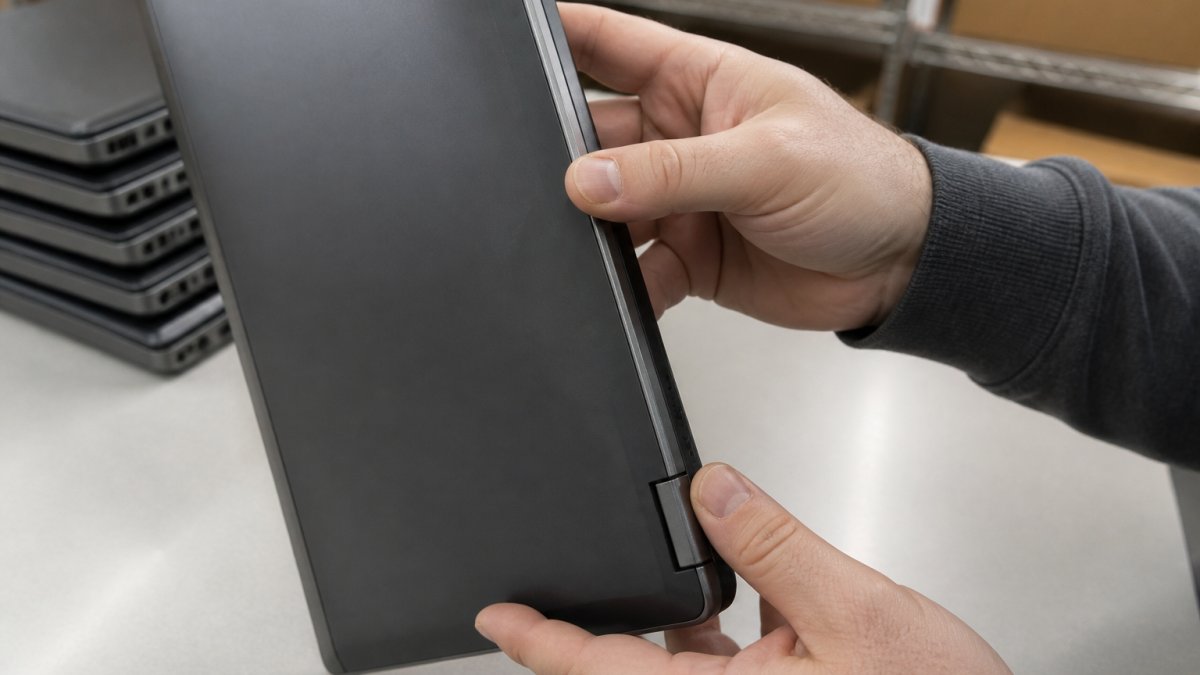
Run your fingers along the edges and corners. Feel for sharp edges from cracks or rough repairs.
On the keyboard area and palmrest, discoloration, fading, or shiny spots from heavy use are normal; cracks or deep gouges are red flags.
Check the bottom panel, peeling back any rubber feet if possible. Debris, corrosion, or water stains inside suggest moisture exposure or poor storage.
Identifying Evidence of Repair
Refurbished laptops often have been repaired; the question is whether it was done properly. Look for:
- Misaligned panels: Gaps between the lid and base, or between keyboard and palmrest, suggest sloppy reassembly
- Adhesive residue: Dried glue around seams indicates someone opened the device
- Replacement parts: A different-colored keyboard or trackpad means components were swapped
Not all repairs are bad. A professional replacement part is fine. Amateur repairs with visible flaws suggest the technician cut corners elsewhere.
Testing Display and Input Components
Screen Abnormalities and Dead Pixels
Power on the laptop and open a solid white image or webpage to check for dead pixels and discoloration.
Dead pixels show as small black, white, or colored dots that don't change.
The display should be even in brightness across the entire panel; darker or lighter patches, especially in corners, indicate backlight problems or panel damage.
Check for cracks or delamination along the bezel edges; any visible cracks mean the panel will fail soon.
Keyboard, Touchpad, and Ports
Press every key; each should respond cleanly without sticking or bouncing.
The touchpad should be responsive and smooth, and its buttons should click firmly without feeling loose or mushy.
Inspect all ports (USB, HDMI, audio jack, power connector) for bent pins, corrosion, or debris.
Check the webcam by opening your camera app. The image should be clear. Look for cracks in the lens or a dark, cloudy appearance that suggests internal damage.
Refurbished Laptop Inspection Checklist: System Specifications
Verifying Processor, RAM, and Storage
System specifications must match what the seller advertised. Open System Settings or Device Manager to check the processor, RAM, and storage capacity.
Compare what you see to the listing. A laptop advertised with an Intel Core i7 should show exactly that; if it shows an i5, you've found a problem.
Storage capacity often shows less than advertised because the operating system uses space. A 256GB SSD typically shows around 220-230GB available (OS drive free space). That's normal.
Serial Number and Model Verification
Every laptop has a serial number and model number on a label on the bottom or inside the battery compartment. Write them down.
Enter the serial number on the manufacturer's website to verify the device is real and not counterfeit; the database shows the original purchase date, warranty status, and any recalls.
Cross-check the model number against the processor and RAM you found in System Settings. A mismatch suggests the device was reassembled with parts from different machines.
How to Check Refurbished Laptop Battery Health
Battery health is the single most consequential spec on a refurbished laptop; a worn battery can turn a bargain into a device that only works tethered to a wall outlet. Both Windows and macOS expose the raw numbers you need.
Reading Battery Capacity and Health Percentage
On Windows, open Command Prompt as administrator and run powercfg /batteryreport /output "%USERPROFILE%\Desktop\battery-report.html". In the generated HTML file, find the Design Capacity and Full Charge Capacity rows under "Installed batteries" and divide full charge by design capacity for a health percentage.
Interpret the results against these practical bands:
- 90-100 percent: Essentially new; expect close to rated runtime.
- 80-89 percent: Healthy for a refurbished device; normal aging.
- 70-79 percent: Usable, but plan on shorter unplugged sessions and eventual replacement.
Cycle count matters as much as percentage. Most lithium-ion laptop batteries are rated for roughly 300-1,000 full charge cycles before capacity drops to about 80 percent (Battery University).
Testing Charging Behavior and SSD Lifespan
Plug in the charger and confirm the indicator lights within a few seconds. Check the charge rate in the battery report or Settings > Power & battery; a healthy adapter pushes the battery toward full steadily.
Run a real-world drain test: charge to 100 percent, unplug, set brightness to about 50 percent, and loop a video for 30 minutes. A drop roughly double the expected rate confirms significant wear.
For SSD health, the check depends on the drive brand and the OS:
- Windows, any NVMe or SATA drive: Use CrystalDiskInfo (free) to read SMART attributes. Look at "Health Status" and the "Percentage Used" or "Wear Leveling Count" field. A drive at 90 percent or higher remaining life is fine; below 80 percent, plan for replacement.
- Samsung drives: Samsung Magician reports TBW used and drive health directly.
- Western Digital drives: Western Digital Dashboard shows remaining life and temperature.
Also check the Total Host Writes or Data Units Written field.
How to Test a Used Laptop Before Buying
Thermal Condition and Fan Operation
Run a free stress test like Prime95 or CPU-Z for 10-15 minutes, then feel the bottom and sides. They should be warm, not hot enough to hurt your hand.
The fan should ramp up under load but not sound like a jet engine.
Check the vents for dust. Compressed air can clean them, but heavy buildup suggests poor maintenance and causes overheating.
Audio, Webcam, and Output Components
Play a video or music to test the speakers. Sound should come from both sides evenly.
Test the headphone jack by plugging in headphones; audio should switch automatically. If it doesn't, the jack is failing.
Open your video conferencing app and test the webcam. The image should be sharp and well-lit.
Connect an external monitor via HDMI or USB-C. The display should appear without lag or artifacts, confirming the video output and port work.
Operating System, Data Security, and Refurbishment Grade
Most inspection guides stop at hardware, but the operating system and leftover data are where refurbished purchases go wrong invisibly: a Windows license that won't activate, a hidden administrator account from the previous owner, or a drive that still contains someone else's files.
Verifying the Operating System and Activation
Open Settings > System > About on Windows and confirm the edition and version. Check that it's still receiving security updates; older releases lose patches on a published schedule, and a refurbisher who shipped an out-of-support build cut corners.
Confirm activation under Settings > System > Activation; it should read "Windows is activated." A digital license linked to a Microsoft account you don't control is a red flag.
Look for signs of a proper reset rather than a quick user deletion:
- No previous owner's name, email, or profile picture on the login screen
- No leftover user folders under
C:\Usersother than your own - No saved Wi-Fi networks or browser profiles from someone else
Performing a Clean Install and Checking for Bloatware
If the device arrives with the previous owner's software or an unclear history, a clean install is safest.
Before wiping, note the Windows product key if the device uses one; many modern laptops embed it in firmware, so reactivation is automatic.
Verify that drivers are current, especially chipset, Wi-Fi, and graphics. Manufacturer support pages list correct versions by model; generic drivers can cause unstable Wi-Fi or display issues that look like hardware faults.
Interpreting Refurbishment Grades and Repair Documentation
Grades aren't standardized across sellers, so treat them as marketing shorthand until you confirm what they mean for that listing. A common pattern is:
- Grade A / Excellent: Minimal cosmetic wear, fully functional, battery typically at 80 percent health or better.
- Grade B / Good: Visible scratches or scuffs, fully functional, battery may be at 70-80 percent.
- Grade C / Fair: Significant cosmetic damage or minor functional issues disclosed in the listing.
Ask the seller for the refurbishment record: what was replaced (battery, keyboard, screen, drive), whether all functions were tested, and whether the battery and SSD were replaced with new or OEM parts. A seller who can produce that record is more reliable than one who only cites a grade letter.
What to Do When Inspection Reveals a Problem
If you find a critical issue, document everything with photos and notes, then contact the seller immediately if you're buying through an auction or marketplace. Most reputable sellers offer returns or refunds for items that don't match their description.
Check the return policy before you buy. KVSAuctions.com and similar platforms have specific return windows, so know those terms upfront.
If the problem is minor, decide whether you can fix it yourself or negotiate a lower price.
For serious issues like water damage, overheating, or major cosmetic damage, walk away; repair costs often exceed the savings from buying refurbished.
Buying refurbished electronics requires diligence, but it's worth the effort.
| Inspection Step | What to Check | Why It Matters |
|---|---|---|
| Physical condition | Scratches, dents, hinges, keyboard wear | Shows how the device was treated |
| Display panel | Dead pixels, discoloration, cracks | Screen repairs are expensive |
| Input components | Keyboard response, touchpad, ports | Broken keys and ports reduce usability |
| System specs | Processor, RAM, storage capacity | Confirms the device matches the listing |
| Serial number | Verify with manufacturer database | Confirms authenticity and warranty status |
| Battery health | Design vs. full charge capacity | Determines practical battery life |
| Thermal performance | Fan noise, heat during stress test | Overheating causes hardware failure |
| Operating system | Version, cleanliness, security patches | Outdated OS lacks security updates |
Frequently Asked Questions
How do I know if a refurbished laptop is actually in the condition described?
Perform a systematic inspection before purchase or upon arrival. Check the physical exterior for scratches, dents, and cracks. Test the display for dead pixels and discoloration by opening a solid-color image. Verify the processor, RAM, and storage match advertised specifications using system settings or diagnostic tools. Request photos from the seller if buying remotely, and confirm the refurbished status through the serial number and model number. Look for a warranty or return policy that protects you if the condition doesn't match the listing.
What is the best way to check refurbished laptop battery health before buying?
Use built-in diagnostic tools: on Windows, run 'powercfg /batteryreport' in Command Prompt to generate a battery health report showing capacity, design capacity, and cycle count. On macOS, hold Option and click the battery icon to see current charge and condition. Compare the current capacity percentage to the design capacity, ideally it should be above 80% for a refurbished device. Charge the laptop fully, then monitor how long it holds power under normal use. Test charging behavior to ensure the charger functions properly and the battery accepts a full charge without overheating.
What should I inspect to verify a used laptop works before buying?
Request a hands-on demonstration or detailed photos and videos showing the laptop powering on, the operating system loading, and key components functioning. Test the keyboard and touchpad for responsiveness. Check all ports by plugging in USB devices, headphones, and the charger. Run the webcam and speakers to confirm audio and video output work. Monitor thermal condition by feeling the chassis during use, it should not be excessively hot. Verify the SSD health using diagnostic software like CrystalDiskInfo to check remaining lifespan. Ask the seller about the installed software and whether the operating system is a clean installation or includes pre-loaded bloatware.
How can I tell if a laptop has been refurbished or repaired?
Inspect the physical condition for signs of repair, such as mismatched screws, adhesive residue, or panels that don't align perfectly. Check the serial number and model number against the manufacturer's database to confirm the device's history. Look for refurbishment stickers or labels on the chassis or battery. Ask the seller directly about the refurbishment grade (Tier 1, Tier 2, or Tier 3) and what components were replaced or repaired. Review the warranty or return policy, legitimate refurbished devices typically include some form of protection. Compare the cosmetic condition to product photos; if the actual condition is noticeably worse, the device may have been misrepresented or poorly refurbished.