 How-to
7 Steps to Inspect a Surplus Laptop Before You Buy
Quick Summary
To inspect surplus laptops, check the physical condition, screen and hinges first, then test the keyboard, ports and webcam, and confirm battery health and charging. Next run software and hardware tests, verify ownership and BIOS locks, and read the listing carefully before you bid, since many lots are sold as-is.
- Check the body, screen and hinges before anything else, since cracked hinges are expensive to fix.
- Generate a battery report with powercfg /batteryreport to compare design and full-charge capacity.
- Confirm the laptop charges and runs on its adapter, and budget for a charger if none is included.
- Look for BIOS supervisor passwords and organization enrollment prompts that can block a surplus laptop.
- Never assume a surplus drive is empty; plan a clean installation after you receive the laptop.
Table of Contents
- Why Surplus Laptops Need a Closer Inspection
- Step 1: Check Physical Condition, Screen and Hinges
- Step 2: Test the Keyboard, Touchpad, Ports and Webcam
- How to Check Second Hand Laptop Battery Health
- Used Laptop Testing Software and Hardware Checks
- What to Check in a Laptop Before Buying: Ownership, BIOS Locks and Data Wiping
- Booking Your Surplus Laptop Purchase at KVSAuctions.com
- Frequently Asked Questions
Why Surplus Laptops Need a Closer Inspection
Last Updated: November 19, 2026
Surplus laptops can be a great deal, but they also come with risks that new machines do not. A unit may have been used for years, hold old data, or be sold without parts you need. Buyers sometimes expect a clean, working machine and end up with a laptop that is missing a drive, a charger or an operating system. Learning how to inspect surplus laptops before you bid is the best way to avoid that surprise.
The steps below show you what to check, in what order, and what to watch out for. Work through them in a set order so you miss nothing.
- Check the body, screen and hinges first
- Test the keyboard, touchpad, ports and webcam
- Check battery health and charging
- Run software and hardware tests
- Confirm ownership, BIOS locks and data wiping
- Read the listing and bid with confidence
Government and enterprise surplus often arrives in bulk. Many lots are sold as-is, so the description is your main source of truth. A careful look at the photos and specs can save you from a costly mistake.
Step 1: Check Physical Condition, Screen and Hinges
Start with the outside of the laptop. Look for cracks, dents and deep scratches on the lid and base. Heavy impact damage can bend the frame and affect the screen.
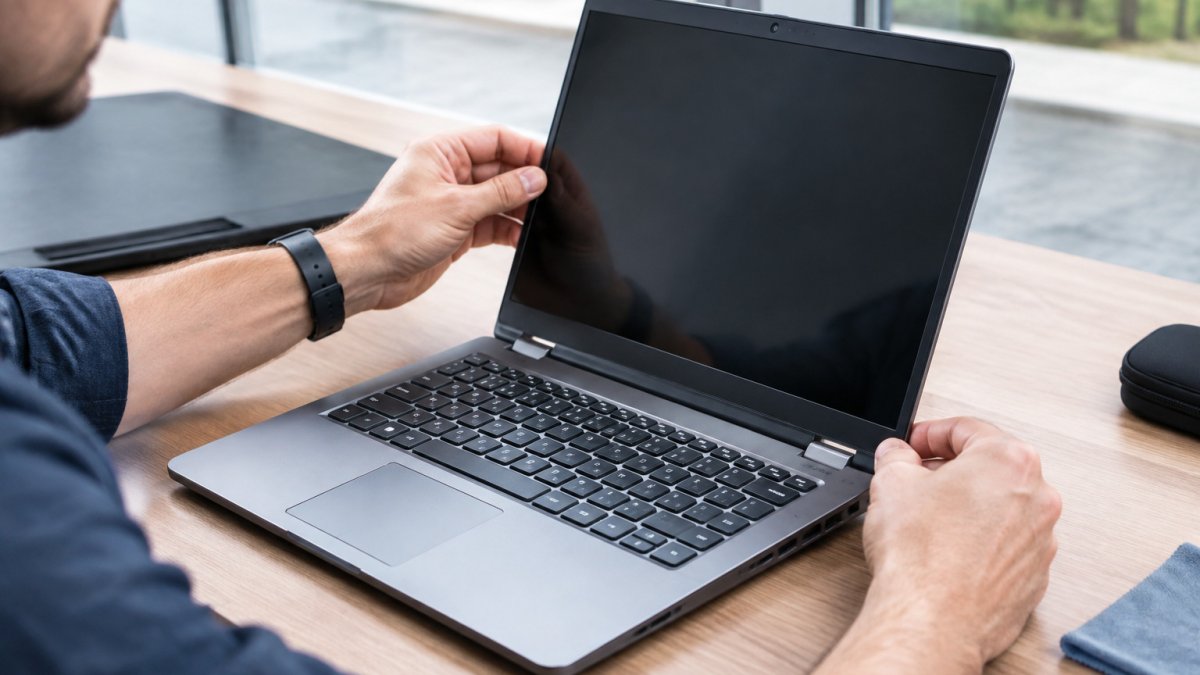
Open the lid slowly. Check that the hinges move smoothly and hold the screen in place. Loose or cracked hinges are expensive to fix.
Next, look at the screen:
- Dead pixels, which show as small dots that never change color
- Pressure marks or bright spots
- Uneven brightness or discoloration at the edges
- Flickering when you change the brightness
Watch out: Light cosmetic wear is normal on surplus gear. Cracks in the screen or hinges are not, so treat them as a serious problem.
Step 2: Test the Keyboard, Touchpad, Ports and Webcam
Once the body checks out, test the parts you use every day. Press every key, including the function keys and the arrow keys. Sticky or dead keys are common on used machines.
Test the touchpad by clicking, dragging and using any scroll or tap features. Then plug in a USB device to test each port. Check the headphone jack, the webcam and the microphone too. Play a short sound to test the speakers.
A quick checklist helps:
- All keys press and respond
- Touchpad clicks and scrolls
- Each USB port reads a device
- Webcam and microphone work
- Speakers and headphone jack work
Use this quick checklist to confirm each everyday part works before you bid.
| Item to test | How to test | What to confirm |
|---|---|---|
| Keyboard | Press every key, including function and arrow keys | All keys press and respond |
| Touchpad | Click, drag and use scroll or tap features | Clicks and scrolls correctly |
| USB ports | Plug in a USB device to each port | Each port reads the device |
| Webcam and microphone | Use the camera and record a short clip | Both work |
| Speakers and headphone jack | Play a short sound through each | Sound plays clearly |
How to Check Second Hand Laptop Battery Health
Battery health can be a hidden cost in used laptops. A battery that has aged may hold much less charge than it once did. Check the battery before you bid, not after.
On Windows, generate a battery report from the command line: open Command Prompt and run powercfg /batteryreport. The report saves as an HTML file and shows design capacity versus full-charge capacity (Caring for your battery in Windows). Compare the two numbers. A full-charge capacity that is well below the design capacity means the cells have degraded. The report also shows cycle count on many models; a high cycle count confirms heavy use.
On macOS, open System Information and select Power, or hold Option and click the Apple menu to view battery condition. On many business laptops, the manufacturer's own diagnostic tool (often accessible from the BIOS or a boot menu) reports battery health directly.
Also confirm the laptop charges and runs on its power adapter. Plug in the charger, confirm the charge indicator responds, and check that the battery percentage rises. If the listing says no charger is included, budget for one that matches the laptop's specifications before you bid, an OEM or compatible adapter that matches the laptop's specifications will be needed, and the wrong voltage or connector can damage the unit.
A quick battery checklist:
- Battery report generated and design versus full-charge capacity compared
- Cycle count reviewed where available
- Laptop charges and runs on the adapter
- Adapter included or budgeted for
- Replacement battery cost estimated before bidding
Watch out: A laptop that only runs when plugged in may have a failed battery or a failed charging circuit; the two problems look the same from the outside and have very different repair costs.
Used Laptop Testing Software and Hardware Checks
After the physical tests, run software checks. These show problems you cannot see from the outside.
Use a memory test to check RAM for errors. You can find a step-by-step walkthrough in how to test used computer hardware. Run a storage health check to confirm the drive is not failing. A stress test can show whether the processor overheats or throttles under load.
Hardware checks should confirm the processor, RAM amount and storage size match the listing. A mismatch can mean the unit was altered or the description was wrong. Note any gaps and ask the seller before you bid.
What to Check in a Laptop Before Buying: Ownership, BIOS Locks and Data Wiping
This is where surplus equipment differs most from a ordinary used laptop. A machine that was owned by an agency or a company can carry locks, enrollment records, and old data that survive a simple factory reset. Verify these three things before you bid: who owned it, whether it is management-locked, and whether the drive was actually wiped.
Ownership and provenance. Surplus units usually carry an asset tag, a sticker or etched label with a number that ties the device to an inventory record. Check that the tag matches the listing's description and that the seller states the device was released from the organization. If the listing shows no asset tag, no agency name, and no release language, treat the provenance as unknown.
BIOS and firmware locks. Enterprise laptops are frequently shipped with a BIOS supervisor password, a hard-disk password, or a firmware password that blocks booting from external media. On many business models, a BIOS password prevents you from changing the boot order, disabling Secure Boot, or installing a new operating system. Check the listing for language such as "BIOS unlocked" or "no BIOS password." When you can power on the unit before bidding, enter the BIOS setup key at boot (often F2, F10, or Del, depending on the model) and confirm you can reach the setup menus without a password prompt. If a password prompt appears, assume the unit is locked until the seller proves otherwise.
Management enrollment. Business machines may be enrolled in a device-management service that reactivates after a reset. On Windows units, an enrollment screen can appear during setup asking for a work or school account. Check whether the listing says the device was removed from management or deprovisioned. If you can boot the unit, watch the first setup screen for an organization prompt; if one appears, the device is still enrolled and may be unusable without the organization's release.
Data wiping. Never assume a surplus drive is empty. A factory reset on the previous owner's account does not guarantee the data is unrecoverable. Ask the seller how the drive was handled before it was released. A listing that says "drive removed" or "no storage" is actually a safer signal than one that says "reset to factory settings." When you receive the laptop, plan to perform your own clean installation: create installation media, boot from it, delete all partitions, and install the operating system from scratch. If the drive is included and you want to verify erasure, check the SMART data and confirm the drive has no user partitions before you install anything.
A quick pre-bid checklist for this section:
- Asset tag present and consistent with the listing
- Listing states the unit was released or decommissioned
- BIOS setup is reachable without a password
- No organization enrollment prompt at first boot
- Drive either removed or documented as securely wiped
Watch out: A unit that boots to a login screen or a setup screen asking for an organization account is not the same as an unlocked unit, even if the seller calls it "reset."
Booking Your Surplus Laptop Purchase at KVSAuctions.com
Once you have run these checks, you are ready to bid. At KVSAuctions.com, every listing shows its specifications, condition notes and photos. Read the full description before you place a bid, especially for lots, because some units may be sold without drives, operating systems or chargers. For a practical guide to safely buying a refurbished laptop, see safe refurbished laptop buying tips.
Only verified buyers can take part in bidding, and every financial transaction is secured. If a unit arrives not as described, see what recourse you have for an item not as described. Online bidding is designed to be easy for first-time buyers.
For example, one current listing is a lot of three Dell Latitude 5400 laptops with 16GB of RAM and no storage, sold without an operating system. It is priced at $200.00, and no chargers are included, so budget for a drive and a charger if you need a working setup. You can view it here: Lot of 3 Dell Latitude 5400 Laptop.
Before you bid, read the full item description and review the photos. Learn what to check in auction item photos to confirm the listing matches the described condition.
For a deeper look at grading, read Refurbished Laptop Grades Explained: A Buyer's Guide before you place a bid.
Frequently Asked Questions
How do you inspect a refurbished laptop?
Start with the outside: look for cracks, dents, scratches and sticker residue on the lid, base and corners. Open and close the hinges to check for looseness, and inspect the screen for dead pixels, pressure marks and uneven brightness. Then power on the unit and test the keyboard, touchpad, ports, webcam and speakers. Finish with battery health, storage and a memory test, and compare the listed specifications with what you receive.
How do you check the battery health of a used laptop?
Check the battery health reading reported by the operating system or the manufacturer's diagnostic tool. Many listings report battery capacity as a percentage of original capacity, such as 76% or 95%. Because previously used batteries cannot be guaranteed, treat that figure as an estimate and factor in replacement cost.
What software can you use to test a used laptop?
Built-in diagnostics, such as the Windows memory diagnostic and the storage health tools in your operating system, cover basic checks. Manufacturer utilities can test hardware components more thoroughly. Use a stress test to check thermal performance and a storage tool to confirm drive health. Run these tests before you rely on the device for schoolwork or business use.
What should you check when buying a secondhand laptop?
Confirm the model and serial number match the listing, and check that the BIOS is unlocked if you plan to install your own operating system. Verify the processor, RAM and storage capacity, then test the screen, keyboard, ports and battery. Read the full item description, since some surplus lots ship without a hard drive, operating system or charger, and plan for those extra costs.