 listicle
Best Refurbished Desktop for a Home Server Setup
Quick Summary
A refurbished desktop is a cost-effective home server choice because it costs far less than purpose-built server hardware and runs without a monthly subscription. Choose one by matching processor generation, memory, and storage bays to your workload, and check whether a drive, operating system, and power cable are included.
- Business-class machines are built for continuous office use, so they tend to be sturdier than consumer desktops.
- Verify whether the listing includes a drive, since many business-class refurbishments ship without one.
- A BIOS-password-locked board can block boot-order and virtualization changes a server depends on.
- Use 16GB RAM minimum for virtualization and containers, with 32GB preferred.
- Estimate annual electricity cost and compare it with the purchase price before bidding.
Table of Contents
- Why a Refurbished Desktop Makes a Practical Home Server
- What to Check Before You Buy a Used Desktop for Home Server Use
- Home Server RAM Requirements by Workload
- Used Mini PCs for Home Servers Versus Full Desktops
- Ranked Refurbished Desktop Options for a Home Server
- Used Desktop for Media Server and Refurbished PC for Home Assistant
- Running Your Refurbished Home Server Next: Booking Your First Build Plan
- Frequently Asked Questions
Why a Refurbished Desktop Makes a Practical Home Server
Last Updated: November 14, 2026
A refurbished desktop is one of the most cost-effective ways to run a home server, and KVSAuctions.com lists business-class machines that suit the job. Many home lab builders start with an old office PC because it costs far less than purpose-built server hardware. The machine can handle file storage, media streaming, and self-hosted services without a monthly subscription.
Used business desktops are built for continuous office use, so they tend to be sturdier than consumer machines. Those features matter when a server runs around the clock.
The trade-off is power draw and noise. A mid-range desktop uses more electricity than a small mini PC, so the running cost should be part of your decision.
What to Check Before You Buy a Used Desktop for Home Server Use
Before you bid on any refurbished desktop, confirm the processor generation, installed memory, and storage type. Read each listing's full description, because some items are sold without a drive or operating system. Some items sold are incomplete and intended for technically skilled buyers who can finish the setup themselves.
A home server runs unattended for years, so the pre-purchase check is really a reliability audit. For a full walkthrough, see how to test used computer hardware before you buy.
1. Processor generation and platform age. Newer generations generally deliver better performance per watt, which matters when the machine runs 24/7. Before bidding, you can also read how to check a used desktop before buying online.
2. Memory: installed, maximum, and slots. Confirm how much RAM is installed, how many slots are populated, and the platform's maximum. A machine with 8GB in two slots is a worse upgrade path than one with 8GB in one slot and a free slot.
3. Storage: bays, slots, and what is included. Look for a SATA drive bay or an NVMe slot if you plan to add capacity. Confirm whether the listing includes a drive at all, many business-class refurbishments ship drive-less.
4. Power supply: wattage, form factor, and cables. Check the wattage and whether the cables are included. Business desktops often use proprietary power-supply form factors, so a failed unit can be expensive to replace. A missing power cable is a minor cost; a missing proprietary PSU is not.
5. CMOS battery and BIOS access. A dead CMOS battery causes clock resets and boot oddities that look like hardware failure. Follow step-by-step checks to verify refurbished laptop condition to confirm the machine's state.
6. Refurbishment quality and cosmetic grade. Look for signs of poor refurbishment: mismatched screws, missing slot covers, dust in the heatsink, or a chassis that has been re-labeled. A machine that was cleaned and tested usually shows consistent fasteners and intact warranty seals.
7. Warranty, return window, and seller terms. Confirm the warranty length, whether it covers the power supply and motherboard, and the return window.
8. Operating system and driver support. Confirm the operating system you plan to install. Linux runs well on most of these machines, but check NIC and storage-controller driver support for the specific chipset before you commit.
Watch out: A machine listed without a drive or operating system needs both before it can run a server, and a BIOS-password-locked board can block the boot-order and virtualization changes a server depends on. Budget for those parts and confirm BIOS access before you place a bid.
Home Server RAM Requirements by Workload
The amount of memory you need depends on what the server runs. A simple file share has modest needs, while a media server with transcoding or several containers needs more.
Start with the workload, then choose a memory size that leaves headroom. Listings may include different amounts of RAM, so check each listing's specifications. Add memory only if the machine has spare slots and supports the speed and type already installed.
Used Mini PCs for Home Servers Versus Full Desktops
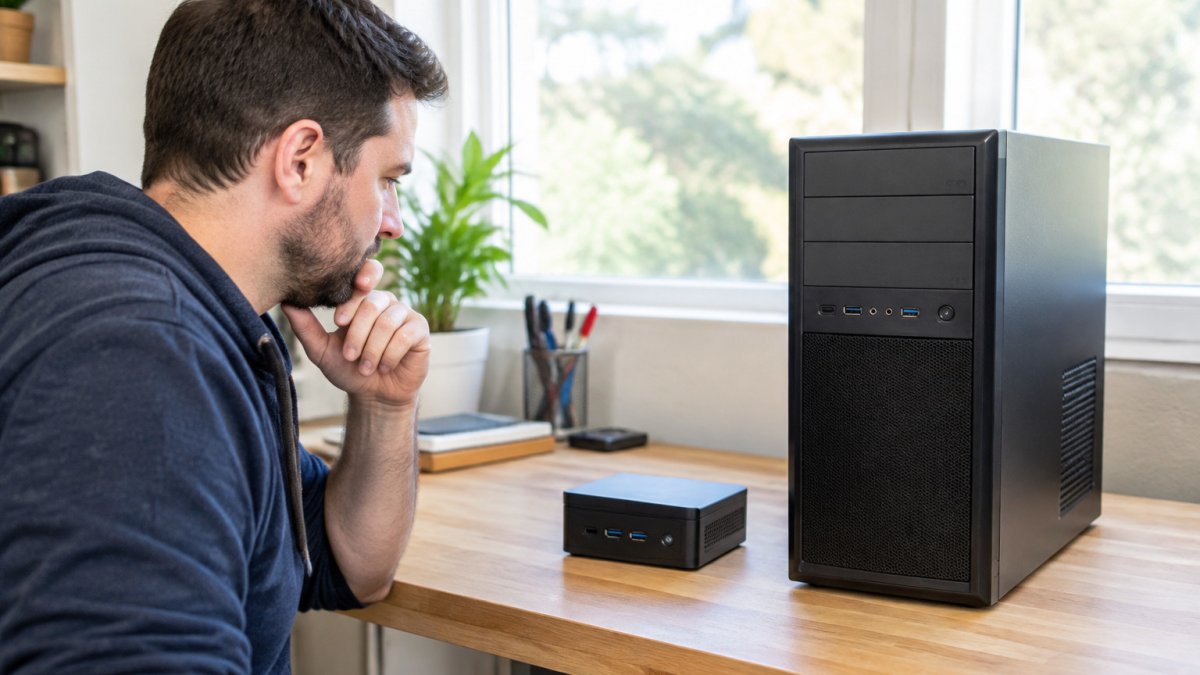
Mini PCs take up little space and draw less power, which suits a quiet server that runs all day. Full desktops offer more drive bays, more expansion slots, and easier upgrades. Choose a mini PC if space and electricity cost matter most. Choose a full desktop if you need several drives or plan to add hardware later.
Ranked Refurbished Desktop Options for a Home Server
The machines below are current listings from KVSAuctions.com. Prices are USD and reflect the listed starting price. Rankings are by fit for a general-purpose home server, with workload notes so you can match a machine to what you actually plan to run.
| Listing | Starting Price | Processor | Memory | Best For |
|---|---|---|---|---|
| Apple Mac Pro 2013 (Xeon E5-2697 V2) | $160.00 | Xeon E5-2697 V2 | 16GB DDR3 | Heavy workloads, no drive included |
| 2 Mixed HP Elitedesks | $150.00 | Core i5-6500T and AMD A6-8500B | 8GB each | Two-machine setups |
| HP EliteOne 1000 G1 34-in AIO | $100.00 | Core i5-7500 | 4GB DDR4 | Compact all-in-one use |
| Lot of 11 Apple Mac Pros (2013) | $3,300.00 | Mixed Xeon E5 | 16GB to 64GB | Bulk buyers and labs |
Starting Price
1. Apple Mac Pro 2013 (Xeon E5-2697 V2), $160.00 This tested machine has a 2.70 GHz Xeon E5-2697 V2 and 16GB of DDR3 memory. The listing includes no drive and no cables, so add storage and power cables before setup.
- Pros: Strong multi-core processor, tested and working
- Cons: Older platform, no drive or cables included
- Expansion notes: The 2013 cylinder chassis has limited internal drive space and relies on external Thunderbolt storage for growth; plan for an external enclosure if your library will exceed a single drive.
- Power note: A many-core Xeon idles higher than a modern mini PC, so factor a higher annual electricity estimate into the total cost.
2. 2 Mixed HP Elitedesks, $150.00 This listing covers two machines. One is an EliteDesk 800 G2 DM with a Core i5-6500T and 8GB of RAM, sold with no drive. The other is an EliteDesk 705 G2 Mini with 8GB of RAM and a 500GB SATA hard drive. Neither has an operating system or power cable.
- Pros: Two machines in one lot, expansion-friendly
- Cons: No operating system, no power cables
- Workload fit: The i5-6500T is a 35W part that suits always-on file serving, Home Assistant, and light containers. The AMD A6-8500B is weaker and better used as a backup node or test box.
- Expansion notes: Mini desktops typically offer one 2.5-inch bay and one or two SO-DIMM slots; confirm before planning a multi-drive NAS.
3. HP EliteOne 1000 G1 34-in AIO, $100.00 This all-in-one has a Core i5-7500 and 4GB of DDR4 memory. The listing includes no drive and no operating system. Its 4GB of memory is the main limit, so plan a RAM upgrade for busy services.
- Pros: Low price, all-in-one design
- Cons: Only 4GB RAM, no drive or operating system
- Workload fit: Best for a single-purpose host such as Home Assistant or a lightweight file share after a RAM upgrade to 8GB or 16GB.
- Expansion notes: All-in-ones have minimal internal expansion; treat storage as external USB or network-attached.
4. Lot of 11 Apple Mac Pros (2013), $3,300.00 This lot contains 11 tested machines with mixed Xeon processors and memory from 16GB to 64GB. Most units include SATA SSDs. No cables are included.
- Pros: Many machines, a range of memory sizes, SSD storage on most units
- Cons: High upfront cost, cables not included
Minimum specifications by workload. Rather than treating every home server alike, map the hardware to the job:
- File storage / NAS: 8GB RAM, any 6th-generation Core or newer, one or more SATA bays, and a stable NIC. Prioritize drive bays over CPU.
- Media server without transcoding: 8GB RAM, a modern quad-core, and storage capacity. Direct play needs little CPU.
- Media server with transcoding: 16GB RAM and a processor with hardware transcoding support (Intel Quick Sync on 7th-generation Core and newer is the common choice). Software transcoding on older Xeons works but draws far more power.
- Virtualization and containers: 16GB RAM minimum, 32GB preferred, and a processor with virtualization extensions enabled in BIOS. Confirm VT-x/AMD-V is unlocked.
- Home automation (Home Assistant): 4GB to 8GB RAM and a low-power, quiet machine; reliability and uptime matter more than cores.
Total cost of ownership, including electricity. Estimate annual power cost by multiplying the machine's average draw in watts by the hours it runs, then by your electricity rate. Compare purchase price plus estimated annual power cost rather than sticker price alone. Use your own utility rate for the final number.
Drive, network, and expansion constraints by chassis. Practical limits often decide suitability more than the CPU:
- Mini PCs: one or two 2.5-inch bays, SO-DIMM memory, no PCIe slot; 1GbE is common, 2.5GbE is rare. Best when storage lives on the network.
- Small-form-factor desktops: one or two bays, low-profile PCIe slot, desktop DIMMs; a good balance for a first server.
- Full towers: multiple bays, full-height PCIe for a RAID card or 2.5GbE/10GbE NIC, and standard ATX power supplies. Choose this when you need several drives or plan to add hardware later.
- All-in-ones: minimal internal expansion; treat as a single-purpose host with external storage.
Watch out: Consider the electricity cost of an older desktop alongside its purchase price, and match the chassis to your storage plan before you bid.
Used Desktop for Media Server and Refurbished PC for Home Assistant
A media server benefits from a capable processor and enough storage for your library. A Home Assistant host needs reliable uptime and modest resources.
Check the operating system you plan to install. Linux runs well on most of these machines, but confirm driver support before you commit.
Running Your Refurbished Home Server Next: Booking Your First Build Plan
A refurbished desktop can serve your home network for years when you choose the right machine for your workload. Start by listing the services you need, then match them to a listing with enough memory and storage. Browse current listings at KVSAuctions.com and register to bid on the machine that fits your plan.
Frequently Asked Questions
Is it a good idea to buy a refurbished desktop computer for a home server?
Often, yes. A refurbished business desktop costs far less than new server hardware and usually has enough CPU cores, RAM slots and drive bays for light self-hosted workloads. The tradeoffs are higher power draw than a mini PC, so check the seller's return policy and test the machine before relying on it. KVSAuctions.com lists tested desktops, and buyers should read each item's full description before bidding, since some units ship without drives or an operating system.
How much RAM is recommended for a home server?
For a basic file server or media server, 8GB of RAM is a workable starting point. Virtualization, containers and services like Home Assistant benefit from 16GB or more, and heavier multi-VM setups can justify 32GB. Check how many DIMM slots the chassis has and whether it accepts DDR3 or DDR4 before you buy, because upgrade paths vary by model. Listed KVSAuctions.com desktops vary in memory, so match the memory to your planned workload.
Is a mini PC or a refurbished desktop better for a home server?
A mini PC wins on power use, footprint and noise, while a full desktop wins on drive bays, PCIe expansion and easier upgrades. If you plan to run several hard drives or a dedicated network card, a desktop tower is usually the better fit. If your server only runs a few lightweight services, a mini PC keeps electricity costs lower. Compare the expansion limits of each chassis before choosing.
Can an old office desktop run a media server or Home Assistant?
Yes. An older business desktop can handle media streaming and Home Assistant without trouble, provided it has enough memory and reliable storage. Hardware transcoding and multiple simultaneous streams need a stronger CPU, so check the processor generation. Using an SSD for the operating system and a separate drive for media storage improves responsiveness. Confirm the operating system you plan to run is supported on the hardware before you commit.